
What is PongFox Voice Coach?
PongFox Voice Coach is an AI session-planning and voice-control feature in the PongFox table tennis robot app. Tell it what you want to practise, ask for a session built around that goal, or describe an individual drill instead of setting up every part manually.
You can use voice input in any language and control playback with short commands. The distinction matters: planning a practice session is not the same as watching your shots or measuring your improvement.
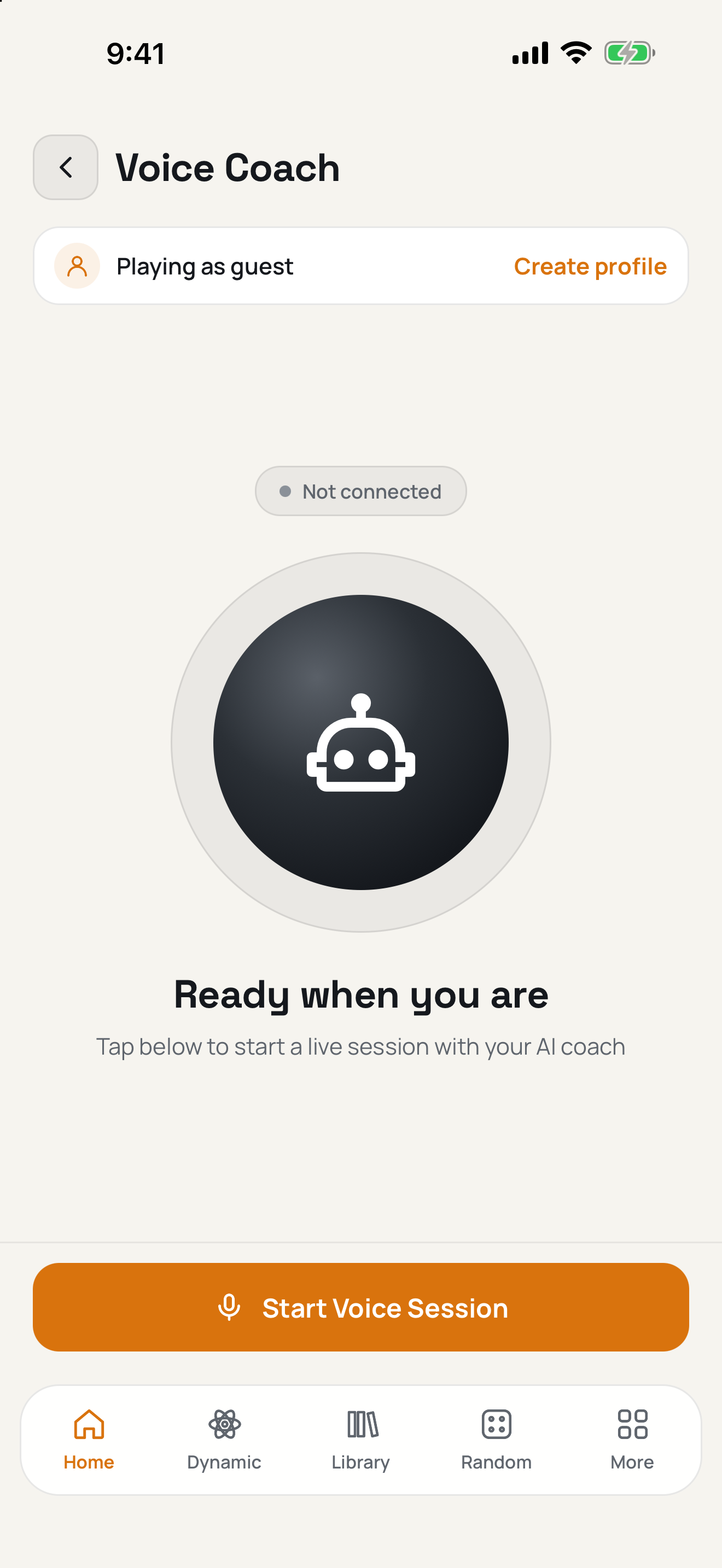
Voice Coach start screen before a voice session. This screenshot shows the entry screen, not generated drill output.
Can I describe the drill I want?
Yes. Describe a drill by voice or text, using the strokes and positions supported by your robot model. A custom request must stay within those model constraints; it is not a way to make the robot perform unsupported feeds.
Example requests to try — not recorded outputs:
- “Create a drill that alternates forehand and backhand placements.”
- “Give me a backhand-focused drill using strokes my robot supports.”
If a request is vague, Voice Coach asks for clarification rather than treating missing detail as a settled choice. Say what you want to practise and refine the request when asked.
Can it plan a 15-minute table tennis session?
Yes. Ask for a goal-based, 15-minute, five-drill session. For example: “Plan a 15-minute session to practise switching between forehand and backhand.” This is another example request, not a record of a generated session.
Session planning selects drills from a coach-reviewed library. A plan can arrange increasing difficulty and alternate sides across the session, so you have an intended progression rather than a single repeated drill.
That progression is planned in advance. Voice Coach does not automatically adapt the session based on how well you return the balls.
Can I speak in my own language and control playback?
Yes. Voice input in any language lets you describe your practice goal in the language you prefer. This refers to what you say to Voice Coach, not a promise of interface translation or spoken replies in every language.
Playback commands include:
- “Start”
- “Stop”
- “Next”
- “Repeat”
- “Play drill 3”
Spoken “Stop” currently ends the entire session, not just the current drill. Do not treat it as a pause command for resuming the same session.
What is coach-reviewed, and what is checked before playback?
Planned sessions use drills selected from the coach-reviewed library, and sessions are checked before playback. Those checks do not amount to a guarantee that every request will be interpreted correctly or that a session will suit every player.
This is not a claim that every custom-generated drill is coach-reviewed. Describing your own drill is a separate workflow, constrained by the strokes and positions your robot model supports. Review what you are about to play rather than assuming a custom request carries the same review as a library drill.
How does personalization work?
Voice Coach can use the details you provide: your level, age, play style, rubbers and handedness. These give the planner context for your request; they are not measurements of your performance.
For example, you could ask: “I’m an intermediate left-handed player using inverted rubbers. Plan a session focused on my backhand.” Add your age or more detail about your play style when relevant.
Voice Coach does not remember your preferences or progress across sessions. Provide the context you want it to use for the session you are planning.
Can I preview a drill before practising it?
Use the five-ball preview to check the requested pattern before committing to more practice. It gives you a short sample to review, rather than requiring you to judge a drill from its description alone.
If the preview is not what you intended, clarify your request before continuing. A preview is a practical check, not proof of accuracy or a promise of training results.
Do ratings change future sessions or track my progress?
No. Ratings are stored, but they do not adjust future sessions. Voice Coach does not track your shots, measure your returns or maintain a cross-session progress history.
Use it to help plan and control practice, not as an automatic assessment of your technique or a replacement for a coach’s feedback.
What does Voice Coach cost?
Start with ₹50 in free Voice Coach credits. Further use requires payment once your free credits are used up.
For questions about paid use, contact PongFox support.
How do I get started, and will it work with my robot?
- Contact support to confirm availability and compatibility with your robot and app version.
- Open the PongFox app and select the AI Voice Coach tile.
- On the Voice Coach screen, tap Start Voice Session.
- Describe your goal or drill, provide the player details you want considered, and answer any clarification questions.
- Review the plan and use the five-ball preview before continuing with practice.
Find the PongFox app. If you cannot find Voice Coach or are unsure whether your setup supports it, check with support before relying on these steps.